Enhanced Product Carousel/Grid
Print
Modified on: Fri, 15 May, 2026 at 11:38 AM
Enhanced Product Carousel/Grid widget allows you to view retailer options in the initial viewport itself and helps in conversion optimization. This will also gives you the option to quickly compare the retailer's availability and prices. We recommend using 2 or more products in the widget as it would enhance the page layout.
Here is an example page using the Enhanced Product Carousel/Grid widget: Example here
You can enable product reviews on the Product Detail Page (PDP). To activate this capability reach out to our support team here.
Follow the steps below to use the Enhanced Product Carousel widget and enable the Ask Me feature:
Step 1: Select the Enhanced Product Carousel from the widget listing
Step 2: Update the title of your widget based on your requirement. The default title for the widget is - Buy now from your favorite retailers.
Step 3: Click on the desired product to feature on the widget. selected products will have the "Green tick" on the packshot.
Step 4: To enable the Ask Me feature, add the property 'enableAskMe' to the Enhanced Product Carousel and set it to 'true' .
You can instantly understand product features, benefits, and suitability through an interactive, AI-assisted experience without having to scroll through static content. It also creates a smoother journey within the widget while helping brands better understand your preferences and intent in real time.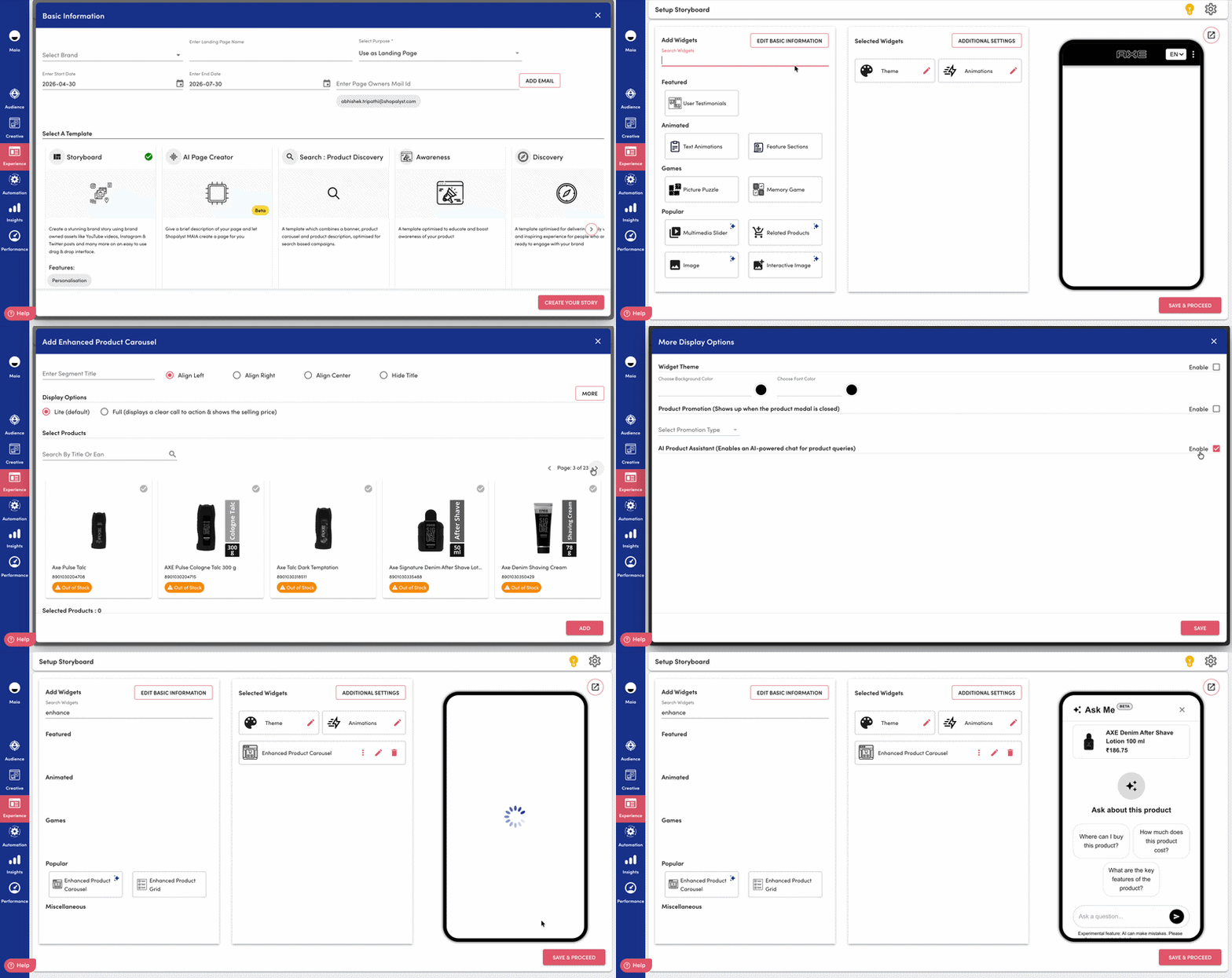
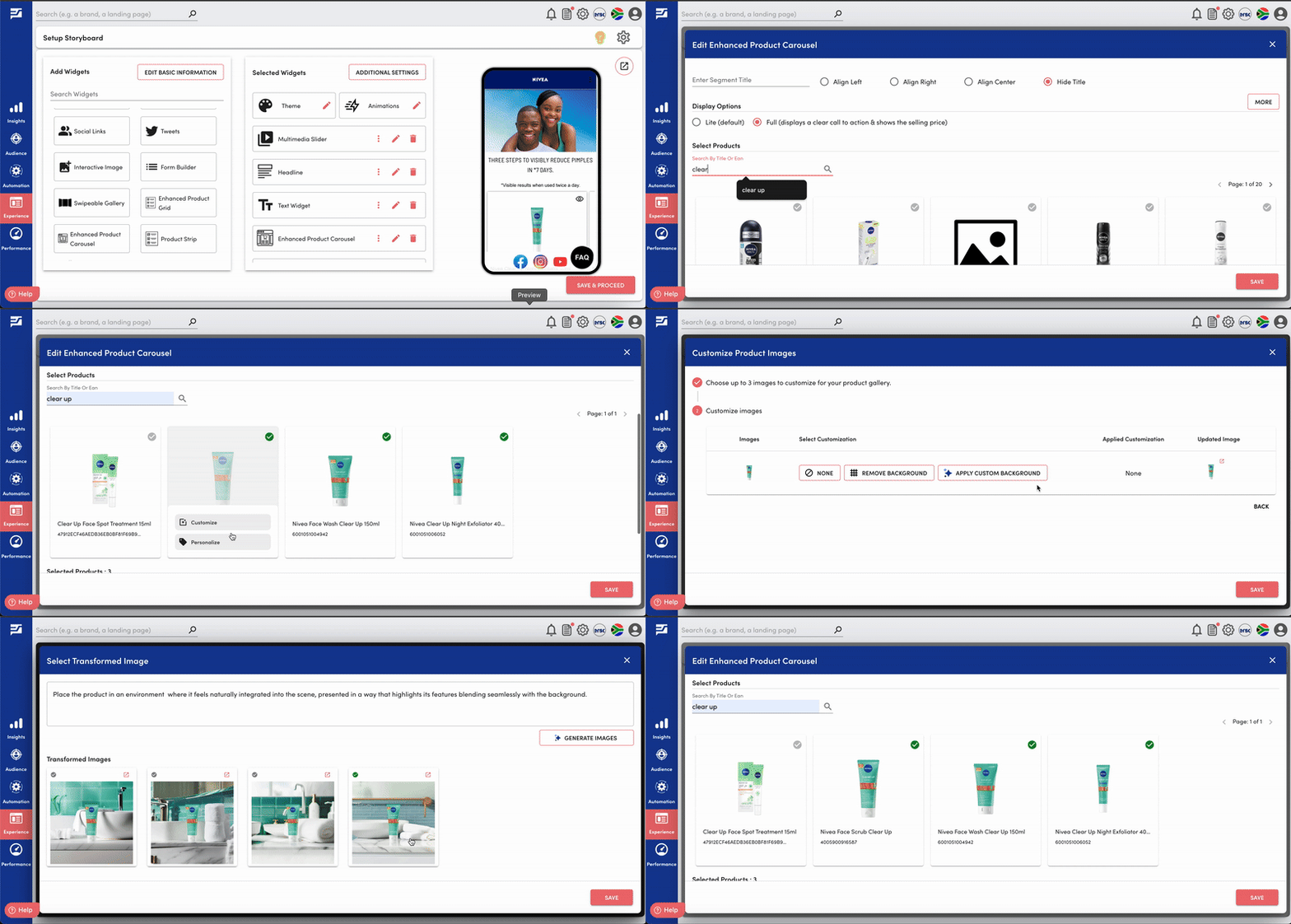
Step 5: Upon selecting the products from the catalog, click the "ADD" button , and You can customize product images in your gallery to make them look clean and consistent. This feature helps you present your products with style and clarity captivating your audience while maintaining visual consistency.
Select Images - You can choose up to three images per product.
Choose a Transformation
None: Keep the original image.
Transparent Background: Remove the background for a simple, neat look.
Apply Custom Background: When you apply a custom background to a product image, the system automatically generates four image options using a default prompt. You can preview and choose one of the suggested images to add directly to your product gallery. If you want more control, simply enter your own prompt to generate personalized backgrounds that match your brand or vision.
3. You can customize images in these widgets:
Enhanced Product Carousel
Shopalyst needs to index the products in order to list them on the catalog, please contact the support team to have your products indexed.
Looking for more help? Instructions to reach out to support are here.
Did you find it helpful?
Yes
No
Send feedback Sorry we couldn't be helpful. Help us improve this article with your feedback.
