Interactive Image
Print
Modified on: Wed, 17 Dec, 2025 at 12:04 PM
The Interactive Image widget helps you create a more engaging banner by adding clickable Shop Spots that highlight products and provide a seamless path from discovery to purchase. The workflow is designed to guide you step-by-step through uploading your image, placing shop spots, and confirming product tagging with clarity and control.
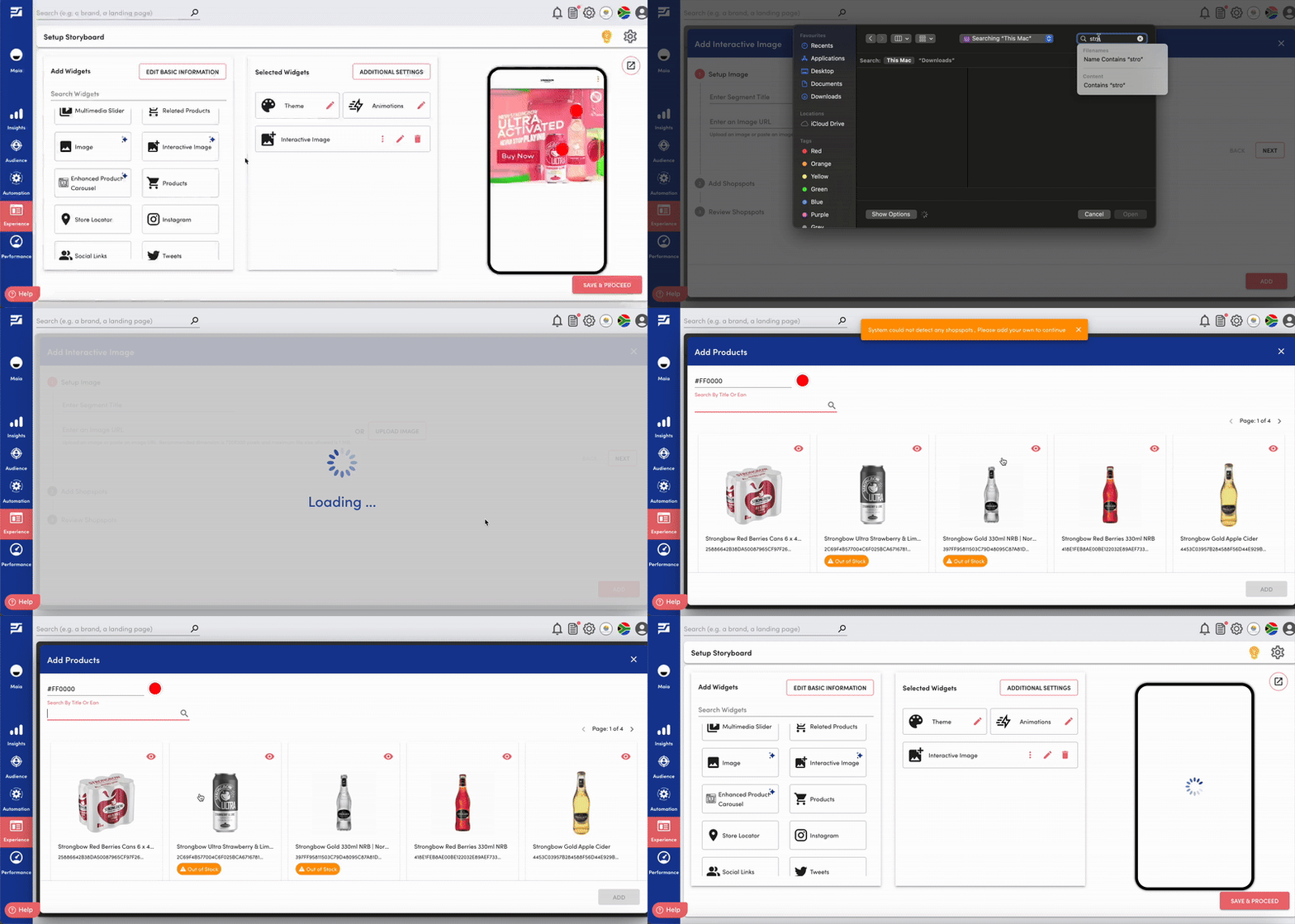
Follow the Bellow steps to add Interactive Widget:
Step 1: Add the Widget
From the left-side widget panel, click Interactive Image to add it to your storyboard.
You’ll see a clean, visual interface that prompts you to begin by uploading your image.
Step 2: Upload Your Image & Add Shop Spots
After uploading your creative (refer to the creative specifications article for guidance), you can begin placing Shop Spots on the image.
You can:
Click directly on the image to place a spot with precision and flexibility
Adjust each spot by moving or resizing it as needed
Review automatically generated shop-spot suggestions based on the visual elements of your image—these help you quickly identify relevant product areas without manual effort
For best visibility and engagement, avoid placing spots too close to the edges of the image.
Step 3: Tag Products & Review
Link a product to each Shop Spot by selecting from your catalog.
For the smoothest shopping experience, we recommend tagging one product per spot.
Before publishing:
Review all the Shop Spots you’ve added
Check the product tagging for accuracy
Return to any step to make adjustments if needed
This ensures your interactive image is complete, clear, and ready to deliver a seamless shopping journey.
The Shopalyst Experience Builder offers a wide range of widgets that cater to diverse use cases. To know more about Shopalyst Widget Library click here.
Looking for more help? Instructions to reach out to the support team are here.
Did you find it helpful?
Yes
No
Send feedback Sorry we couldn't be helpful. Help us improve this article with your feedback.
