
This article provides you with instructions to access Media campaign performance reporting.
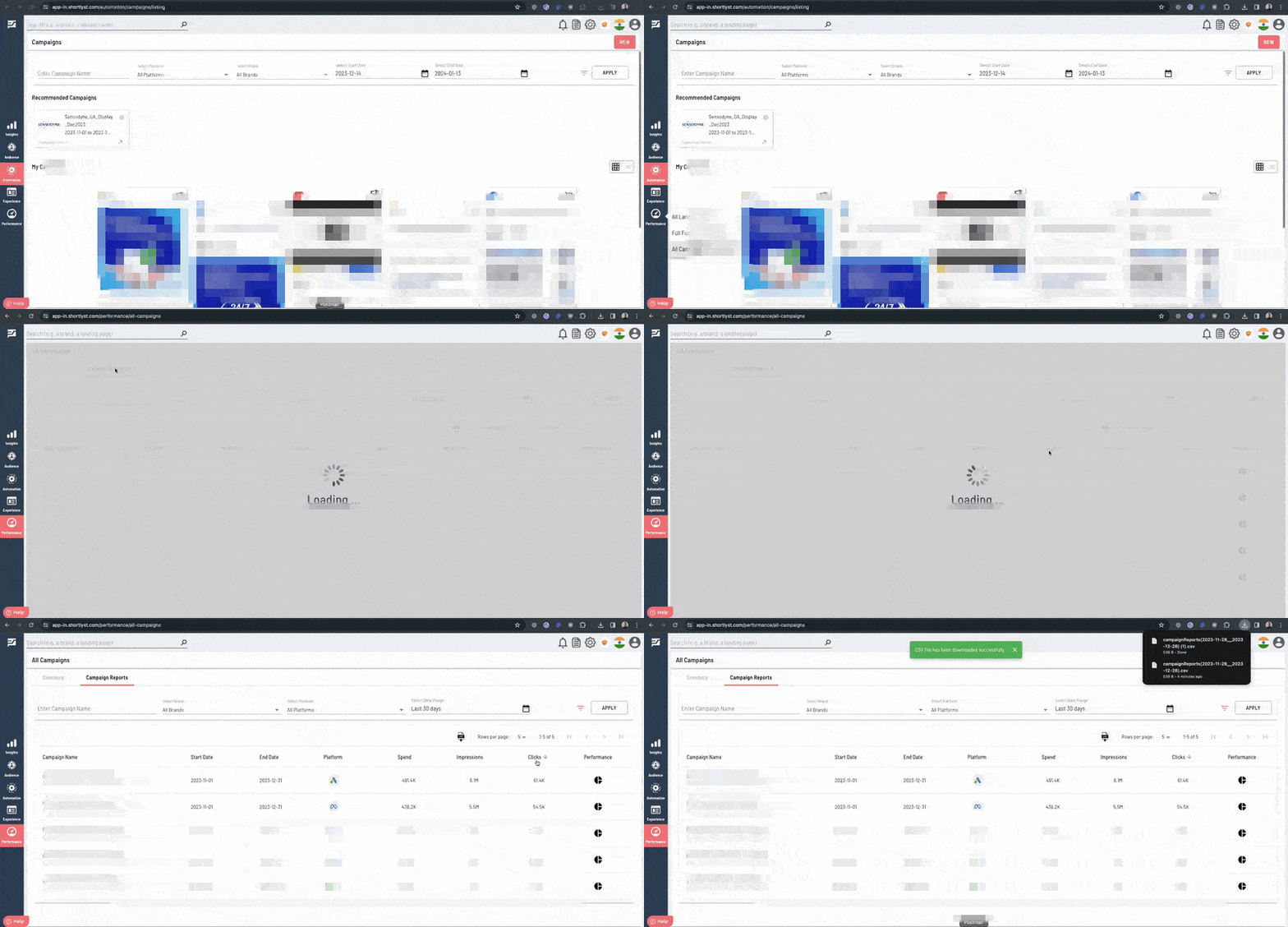
Step 1: Go to the Performance Tab
Step 2: Click on "All Campaigns"
Step 3: Filter your campaign using the available options by entering the campaign name, selecting the brand name, platforms, and the desired date range. For the date range, you can choose either "Campaign Delivery Date Range" (to analyze performance within a delivery window) and "Campaign Creation Date" (to track campaigns based on when they were created). Once your selections are made, apply the filter to view the results.
Step 4: The Summary screen provides filters that assist in narrowing down the search results to desired campaigns. These filters comprise various criteria, such as campaign name, Platforms, Brands, start and end dates of the campaign along with additional filters.
- Destination site filter for better search results:
The filter of "destination site" enables you to search campaigns based on the site host. Narrow your campaign listings to see campaigns that direct traffic to specific sites like Shopalyst comparison shopping, merchant sites, and your own pages along with
Template type- Standard and Discovery commerce
Campaign Type- Search, Display, and so on
Campaign objective- Awareness, Reach, Traffic, etc
Ad format- Image, Video, Display, etc
Geography- Places and zip-codes( campaigns based on specific geographic locations)
You can add multiple values for Brands, Platforms, Campaign Types, Campaign objectives, Ad formats and Geography under campaign listing screen.
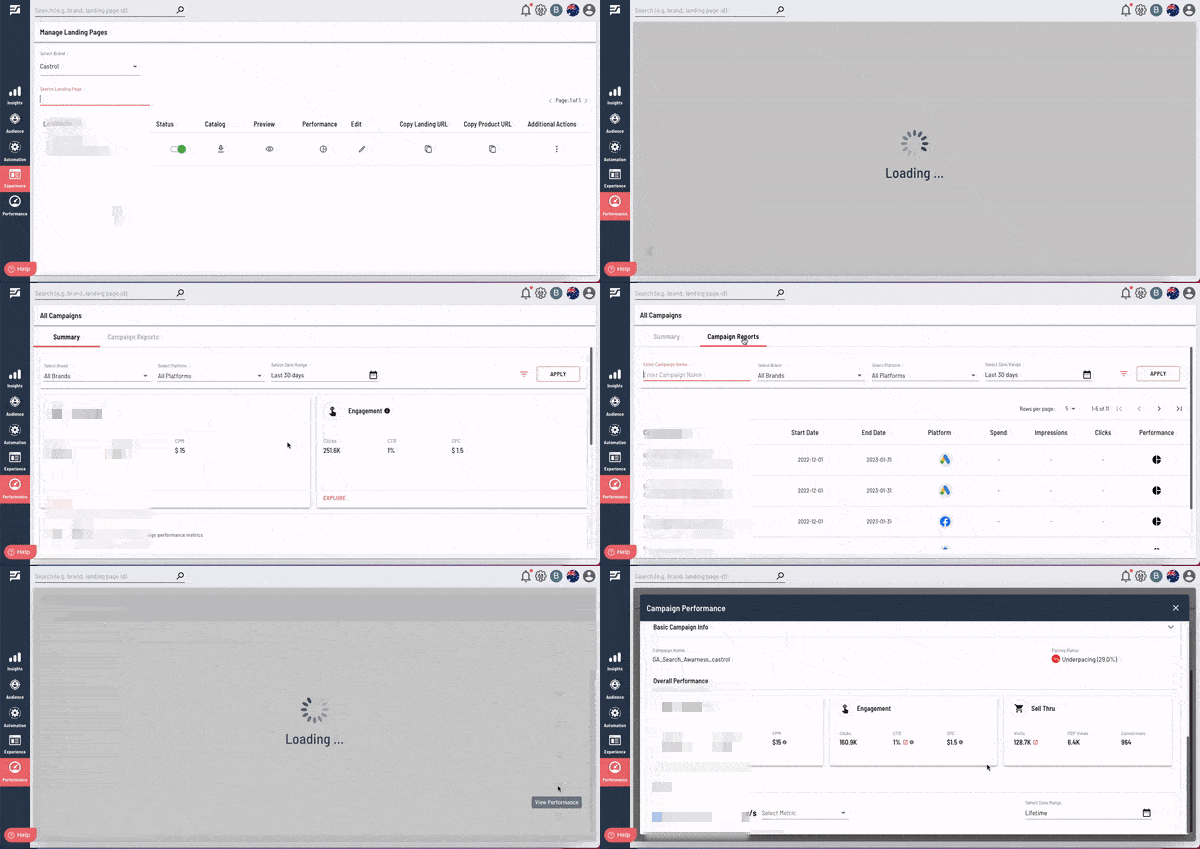
Step 5: Click on the "Campaign Reports" tab for campaign-specific reports.
Step 6: Under Campaign Reports you can sort the campaigns by key performance metrics such as spend, impressions, and clicks on the Campaign Reports page which can be downloaded in CSV file format for an in-depth analysis. Spend can be viewed either in local or global currency. To learn how to switch the spend from local to global currency can view it here
Step 7: Click on "View Performance" for campaign-specific reporting and analysis
Looking for more help? Instructions to reach out to the support team are here