
Overview
While a DV360 campaign is being pushed to the platform, the in-progress notification now tells you which part of the SDF is uploading. You can follow the push from Campaign through Insertion Order, Line Item, Ad Group, and Ad Group Ad, and see when Shopalyst is finalizing the campaign.
This applies to a first-time Push to DV360, an update pushed onto an existing DV360 campaign, and a bulk SDF upload of more than one campaign.
What's New
- The notification titled Campaign SDF upload in progress updates as each SDF file is uploaded.
- While a file is uploading, the message reads: Uploading {stage} SDF of campaign {Campaign Name}. Stages are Campaign, Insertion Order, Line Item, Ad Group, and Ad Group Ad.
- When a file finishes, the message names what just uploaded and what comes next. For example: Campaign SDF uploaded. Uploading Insertion Order of campaign {Campaign Name}.
- After the last file, the message reads {stage} SDF uploaded. Finalizing campaign {Campaign Name}, then Finalizing campaign {Campaign Name}.
- A stage that has nothing to upload is skipped, and the notification names the next stage that will actually run.
- For a bulk upload of several campaigns from Media Plan Uploads, the name in the notification is the first campaign plus how many others are included, for example Brand Launch + 3 more.
- When the push finishes, the in-progress notification is cleared and the usual success or failure notification is shown.
Important Notes
- The media plan template and the Push to DV360 action stay the same.
- Progress lists only the SDF files included in this push. An update to an existing campaign starts at the first file being pushed, usually the Insertion Order.
- The notification title stays Campaign SDF upload in progress for the whole push.
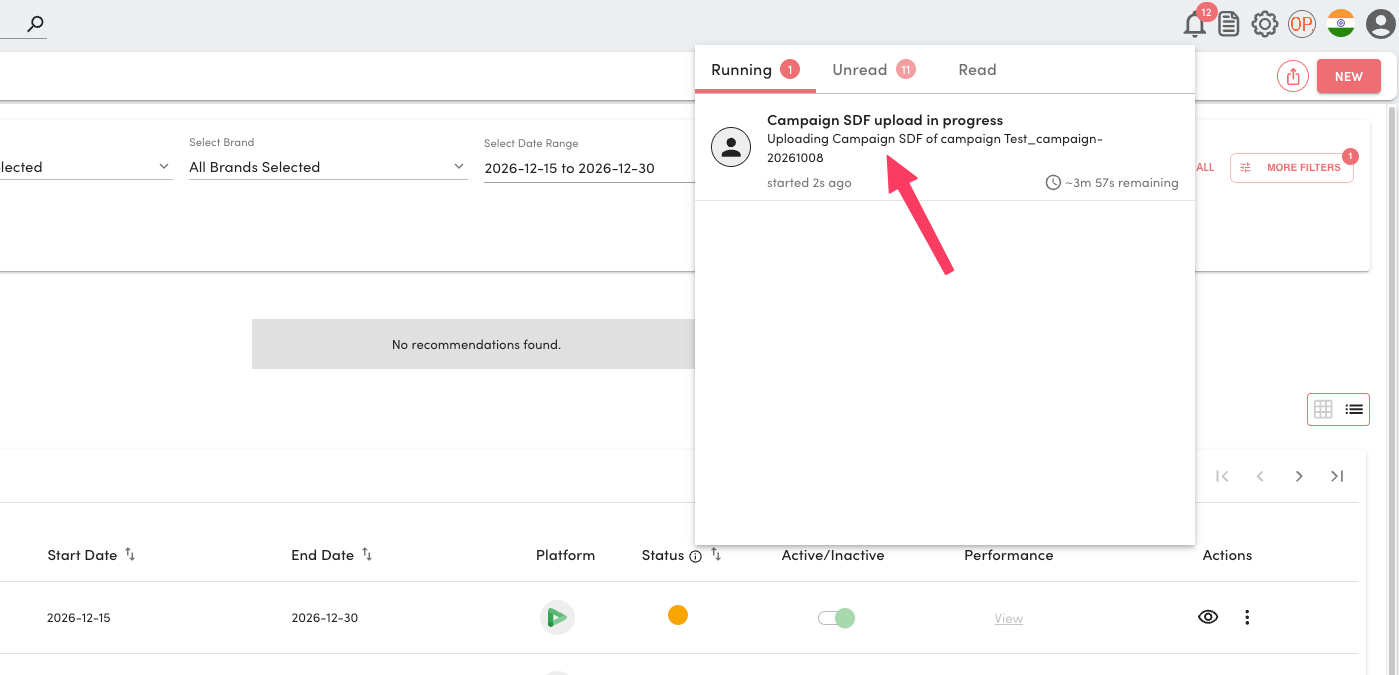
Notification showing Campaign SDF Upload Stage
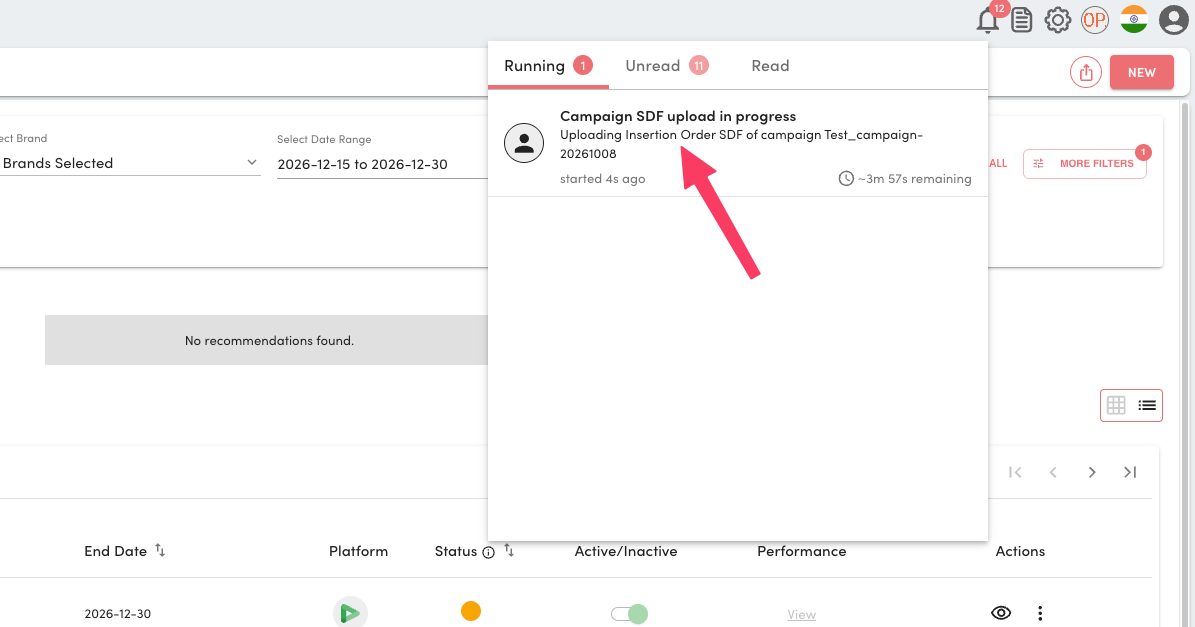
Notification showing Insertion Order SDF Upload Stage
Getting Started
- Publish the campaign in Signal.
- Click Push to DV360, push a campaign update, or start a bulk SDF upload from Media Plan Uploads, as you do today.
- Open the notification titled Campaign SDF upload in progress.
- Follow the message as each SDF is uploaded, until it says the campaign is being finalized.
- When the push completes, that notification is cleared and the usual success or failure notification appears.
Additional Information
To know more about DV360 bulk campaign upload and the Push to DV360 workflow, refer to  DV360 campaign creation via bulk upload and
  Preview Page for Push (SDF) to DV360.